The GF5 motion scene editor is the main composition tool for Part 3. Use it to turn short motion clips into a staged multi-character scene, preview the result on the course proxy character, assign final avatars, and export draft or final videos.
The editor is intentionally lightweight. It is not meant to replace a full animation package. Its job is to help you make clear decisions about timing, placement, facing direction, motion choice, and final evidence.
Start The Editor
Create and activate the gf5 environment first. See the Setup page if you have not done this yet.
From the repository root, launch the editor:
python viewer/scene_web_server.py --port 8093The browser normally opens automatically. If it does not, open:
http://localhost:8093For a remote or headless session, use:
python viewer/scene_web_server.py --port 8093 --no-open-browserThen forward the printed port or open the printed URL through your remote setup.
Files The Editor Uses
The editor reads and writes files inside your project folder:
libraries/motions/preset/: bundled Part 3 motion clips.libraries/motions/custom/: HY-Motion clips imported through the editor.libraries/avatars/: extracted custom avatar packages.libraries/scenes/*.scene.json: saved scene plans.exports/scene_videos/: rendered draft and final videos.
Save your scene regularly. The .scene.json file is useful evidence because it records the clips, timings, root path, camera, and avatar assignments used for your result.
Interface At A Glance
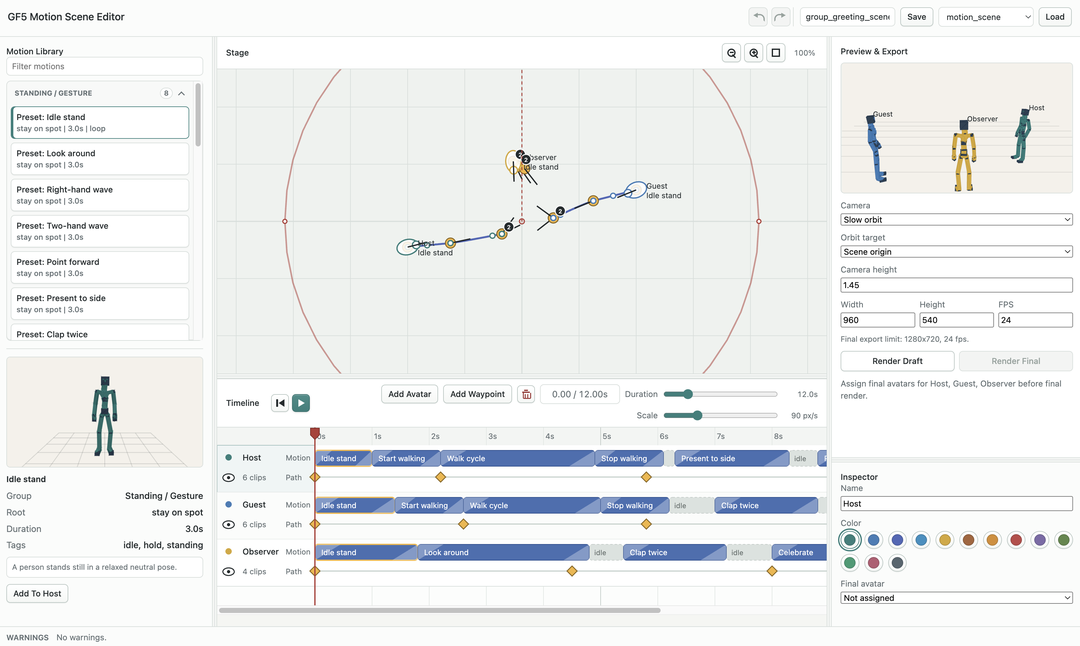
The editor has five main areas:
Motion Library: choose preset clips, filter by name, preview a motion, or import a HY-Motion result.Stage: edit the top-down character path and facing direction.Timeline: arrange motion clips over time, play the scene, add avatars, and control total duration.Inspector: edit the selected avatar, clip, or waypoint.Preview & Export: choose camera settings and render draft or final videos.
The Warnings bar at the bottom reports common problems such as overlapping clips, clips extending beyond the scene duration, missing motions, or very fast path segments.
Recommended Workflow
Start simple and build up:
- Add one avatar and keep the default
SMPL-24 Proxypreview. - Pick a small number of readable actions from the
Motion Library. - Place clips on the timeline and adjust their starts, lengths, and blends.
- Add waypoints on the
Stageto define where the character should move. - Set facing directions so the action reads clearly to the camera.
- Save the scene and render a short blocky draft.
- Add more characters only after the first character reads well.
- Assign final avatars and render the final version near the end.
Avoid solving everything at once. A useful Part 3 scene usually grows from a short readable beat: entering, turning, greeting, reacting, waiting, exiting, or forming a small group action.
Motion Library
Click a motion to preview it. The preview panel shows the group, root behavior, duration, tags, and prompt if the motion came from a generated source.
The preset groups describe how the clip is expected to behave:
Standing / Gesture: mostly stays on one spot, such as waving or pointing.Travel Loops: repeats a locomotion pattern and works best with a changing scene path.Travel Transitions: short starts, stops, and side steps.Turns: changes facing direction.Special Actions: larger actions that may have stronger original movement.Other: motions that do not fit the main groups cleanly.
The Root label tells you how to think about the character's global movement:
stay on spot: use it like a gesture or pose at a chosen position.scene path: use the stage path to decide where the character travels.turn in place: use it mainly to rotate or redirect the character.original travel: the motion already contains meaningful travel.
When you click Add To Track, the motion is appended to the selected avatar's timeline after its existing clips. Select a different avatar first if you want to add the clip to another character.
Stage, Path, And Facing
The Stage is a top-down editor for character placement. Each avatar has a root path made of waypoints. A waypoint stores:
- time
- X position
- Y position
- facing direction in degrees
Select a waypoint to edit it in the Inspector. You can move it directly on the stage or type exact values. Use Move To Playhead to align the waypoint with the current timeline time.
Face Along Segment is useful when a character should look in the direction they are travelling. You can also type a facing angle manually when a character should wave toward the camera, turn toward another avatar, or hold a pose.
Path and the motion clip are different controls. The motion clip describes the local body pose over time. The path describes where the character root goes in the scene. A walk cycle can follow different paths, while a gesture can stay in place at a chosen point.
Timeline And Clips
The Timeline controls when each avatar performs each motion. Use the play button or space bar to preview timing.
Select a clip to edit these fields in the Inspector:
Start: when the clip begins in the scene.Timeline length: how long the clip occupies in the scene.Source inandSource out: trims the source motion.Playback speed: shows the speed implied by timeline length and trimming.Blend inandBlend out: softens transitions between neighbouring clips.Root travel: chooses whether the clip follows the scene path or keeps its original travel.
If a clip feels rushed, increase Timeline length. If it feels too slow, shorten the timeline length or trim the source range. For contact-heavy motion such as walking or jumping, large speed changes can make feet slide or timing look unnatural.
The Duration slider sets the whole scene length. For Part 3, the final scene must be at least 30 seconds long, but it is often easier to rough out an 8 to 12 second beat first and then extend it.
Avatars
Use Add Avatar to create another character track. Select an avatar to edit:
Name: the label used in the timeline and camera target list.Color: the proxy color used while editing.Final avatar: the custom or built-in avatar used for final rendering.
The editor always previews with the SMPL-24 Proxy in the interactive stage. The Final avatar dropdown is used by Render Final. If a custom avatar is not listed, check that its ZIP has been extracted under libraries/avatars/ and refresh the editor page.
Camera And Export
The Preview & Export panel controls the rendered video camera.
Camera presets:
Slow orbit: camera rotates around the scene or selected target.Wide static: fixed wide view.Front stage: fixed front-facing view.Follow avatar: follows one selected avatar.Dolly in: moves closer to the scene or selected avatar.Top down: overhead view for debugging.
Use the target dropdown when the preset supports it. For example, Follow avatar can track one character, while Slow orbit can orbit the scene origin or a selected avatar.
Render Draft exports a blocky/proxy preview quickly. Use this early and often for timing, staging, and report evidence.
Render Final exports with final avatars. It requires every avatar to have a Final avatar assigned. Final export is capped at 1280x720 and 24 fps, and the editor will report if your requested settings are adjusted.
Import HY-Motion Clips
The Import HY-Motion button expects exactly two files:
- one
.fbxanimation file - one
.txtprompt file with the same base filename
For example:
wave_to_camera.fbx
wave_to_camera.txt
After import, the converted motion is written under libraries/motions/custom/, the library refreshes, and the clip appears as a Custom: motion. Keep the prompt text meaningful because it helps you explain where the motion came from in the final report.
Useful Shortcuts
Ctrl+SorCmd+S: save the scene.Ctrl+ZorCmd+Z: undo.Ctrl+YorCmd+Shift+Z: redo.Space: play or pause.Home: jump to the start.DeleteorBackspace: delete the selected avatar, clip, or waypoint.Ctrl+DorCmd+D: duplicate the selected avatar, clip, or waypoint.Arrow LeftandArrow Right: move the playhead, or nudge a selected clip or waypoint in time.Alt+Arrowon a selected waypoint: nudge its stage position.Shift+Arrow: use a larger nudge step.Ctrl+Plus,Ctrl+Minus,Ctrl+0: zoom or fit the timeline.
Troubleshooting
- Page does not open: check that the command is running from the repository root and that the printed port matches the URL you opened.
Render Finalis disabled: assign aFinal avatarto every avatar in the scene.- Custom avatar is missing: extract the downloaded ZIP into its own folder under
libraries/avatars/, then refresh the browser. - HY-Motion import fails: select exactly one
.fbxfile and one.txtfile, check that the filenames match before the extension, and check that the prompt file is not empty. - Animation looks like sliding rather than walking: check whether the clip should use
Follow scene pathorUse original travel, reduce extreme speed changes, and make the path segment less fast. - Scene feels hard to debug: render a blocky draft first. A proxy render is usually the fastest way to see whether the timing and staging are working before you spend time on final avatars.